According to the Pew Research Center's 2024 technology adoption survey, internet use among adults aged 65 and older has risen steadily over the past decade, yet many older adults still report feeling overwhelmed when facing new devices. Computer help for seniors is more accessible than ever, but knowing where to begin can feel confusing.
The core challenge is not intelligence or willingness — it is that most tutorials assume prior knowledge that many older adults never received. This article covers five practical, free approaches to getting comfortable with computers, from built-in accessibility tools to community-based classes. You will learn what actually works, what to avoid, and how to take your first confident step today.
1. Start With Built-In Accessibility Features
Before downloading anything, explore the accessibility settings already on your device. Both Windows and macOS include tools designed to make screens easier to read and use, and these settings are free. Finding the right computer help for seniors often begins with these simple built-in options.
On Windows, open Settings and select "Accessibility" to adjust text size, cursor size, and contrast. On a Mac, go to System Settings and click "Accessibility" to find similar options. These changes take effect immediately and do not require technical skill. For many, this is the easiest form of computer help for seniors available.
AARP's technology education team notes that "many older adults give up on computers not because the tasks are too hard, but because the default text and icons are too small to see comfortably." Adjusting display settings often resolves the frustration before any formal training begins.
Many users also benefit from enabling the on-screen keyboard, which is helpful for those with arthritis or limited hand mobility. Voice typing, available in Google Docs and Windows, lets you dictate text instead of typing.
How to apply this: Spend 10 minutes today opening your device's accessibility settings and increasing the text size by one or two levels.
2. Find Free In-Person Classes Near You
Libraries, senior centers, and community colleges offer some of the best computer help for seniors at no cost. These settings provide patient instructors and the chance to ask questions in real time. For hands-on learners, in-person computer help for seniors is often the most effective option.
Public libraries are the most reliable starting point. Many branches run weekly drop-in tech help sessions where volunteers sit one-on-one with you. The American Library Association reports that technology training is now among the most requested services at public libraries nationwide, confirming the growing demand for computer help for seniors.
Senior Planet, a program from Older Adults Technology Services (OATS), offers free courses specifically designed for people aged 60 and older. Their curriculum ranges from computer basics to online safety and smartphone use. You can find Senior Planet's live class schedule on their official website.

A common scenario: a retired teacher wanted to video call her grandchildren but found Zoom confusing. After three sessions at her local library's tech help desk, she was hosting weekly calls independently.
How to apply this: Call your local library or visit its website and ask about "one-on-one tech help" or "computer classes for older adults."
3. Use Free Online Courses Built for Beginners
If attending in-person classes is difficult, structured online courses offer a self-paced alternative. Several organizations have created beginner-friendly lessons that assume zero prior experience, making them ideal for those seeking computer help for seniors from home.
GCFGlobal, a program of the Goodwill Community Foundation, provides completely free tutorials on computer basics, internet safety, email, and popular software. Each lesson includes screenshots and interactive practice. Visit GCFGlobal's computer basics section to start learning immediately.
TechBoomers is another free resource that focuses on helping older adults navigate websites and apps safely. Their step-by-step guides cover everything from setting up a Gmail account to using Facebook Marketplace. Together, these platforms offer comprehensive computer help for seniors who prefer learning at their own pace.
The key advantage of online courses is repetition. You can replay a lesson as many times as needed without feeling rushed. Many learners report that this removes the embarrassment they feel asking the same question twice in a classroom.
How to apply this: Choose one lesson from GCFGlobal's "Computer Basics" section and complete it this week, taking notes in a notebook as you go.
4. Get Help From Trusted People Safely
Sometimes the best computer help for seniors comes from a family member or friend sitting beside you. But remote help — where someone accesses your computer over the internet — requires caution.
Scammers frequently pose as tech support agents and call older adults claiming their computer has a virus. Microsoft's official support page states that "Microsoft will never proactively reach out to you to provide unsolicited PC or technical support." Any unsolicited call or pop-up warning is a scam.
If a trusted family member wants to help remotely, use a reputable tool. TeamViewer offers a free version for personal use that lets someone you know view your screen with your permission. You always see what they are doing and can end the session at any time.
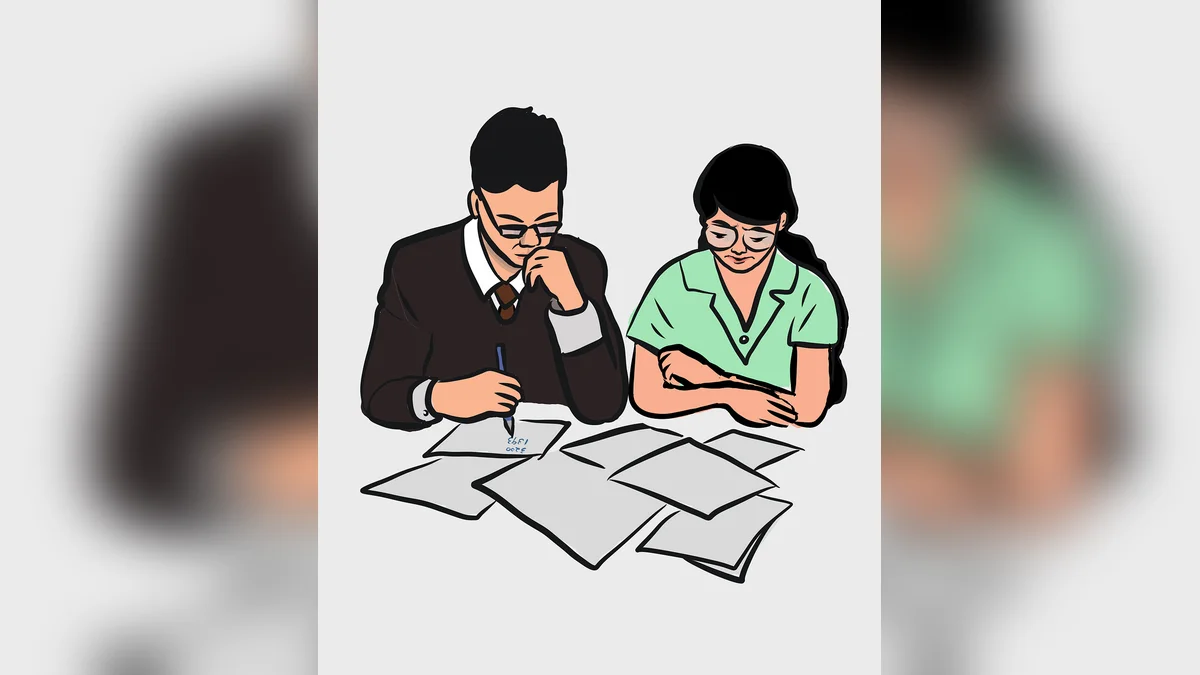
This kind of trusted computer help for seniors can be safe when proper precautions are followed.
Chrome Remote Desktop, a free tool from Google, works similarly and is easy to set up. Only share access codes with people you personally know and trust.
How to apply this: Write down a simple rule: never give computer access to anyone who called you first. Only accept help you initiated yourself.
5. Practice With Everyday Low-Stakes Tasks
The fastest way to build confidence is through small, repeatable wins. Choose low-stakes activities that have clear, satisfying outcomes. Consistent practice is what turns occasional computer help for seniors into lasting independence.
Start by practicing these five tasks:
- Sending and replying to an email
- Searching for a recipe and printing it
- Watching a YouTube video and pausing it
- Bookmarking a favorite website
- Changing your desktop wallpaper
Each task takes under five minutes and builds foundational skills. As these become routine, gradually add more complex activities like online banking or video calls.
Consistency matters more than intensity. Practicing for 15 minutes daily produces better results than a two-hour session once a month. The brain retains new motor skills through frequent repetition, which is why regular computer help for seniors works best when reinforced through daily use.
How to apply this: Pick two tasks from the list above and complete them every day this week. Track your progress with a simple checklist.
Comparison of Free Computer Help Options
| Option | Best for | Cost | Action to take |
|---|---|---|---|
| Accessibility settings | Vision and mobility needs | Free | Adjust text size today |
| Library classes | Hands-on learners | Free | Call your local branch |
| GCFGlobal | Self-paced learners | Free | Complete one lesson this week |
| Senior Planet | Adults 60+ | Free | Register for a live class |
| Family remote help | Specific questions | Free | Use TeamViewer or Chrome Remote Desktop |
Library classes and accessibility settings both offer no-cost ways to begin getting computer help for seniors.
Frequently Asked Questions About computer help for seniors
How do I know if a tech support call is a scam?
Any unsolicited call claiming your computer has a virus is a scam. Legitimate companies like Microsoft and Apple never call customers without a prior support request. If you receive such a call, hang up immediately and do not provide any information or download anything.

If you are worried your computer has an issue, contact a trusted local repair shop directly using a phone number you find yourself.
Remember that legitimate providers never initiate contact, so unsolicited calls are a red flag when seeking computer help for seniors.
What is the easiest computer for a senior to use?
Chromebooks are often recommended because they boot quickly, update automatically, and have fewer settings to manage. Tablets like the iPad are also popular for their touchscreen simplicity. The easiest device is the one that matches how you want to use it — video calls and reading favor tablets, while typing and document work favor a laptop.
The easiest device varies by person, but a Chromebook or tablet is often the starting point for computer help for seniors.
Can I get free computer help for seniors at home?
Yes. Organizations like Senior Planet offer live online classes you can attend from home. Some libraries also provide phone-based tech help where a librarian walks you through a problem. For in-home assistance, check if your area has a nonprofit that sends volunteers to seniors' homes for technology tutoring.
Many organizations offer remote or phone-based assistance, making at-home computer help for seniors both free and accessible.
What should I do if I forget everything I learned?
Forgetting is normal at any age. Keep a notebook with step-by-step instructions written in your own words. Review it before each practice session. Consider recording short voice notes on your phone that you can replay. Many seniors find that writing things down by hand improves retention significantly more than watching a video once.
Is it safe for seniors to bank and shop online?
Yes, with precautions. Always type the website address directly rather than clicking email links. Look for "https" and a padlock icon in the address bar. Use a unique password for financial accounts and enable two-factor authentication when available. Many banks offer fraud protection specifically for customers who report unauthorized transactions promptly.
Conclusion
Finding reliable computer help for seniors does not require expensive courses or advanced technical knowledge. The most effective path combines patience, practice, and the right free resources.
- Start with built-in accessibility settings to remove physical barriers
- Use free resources like libraries, Senior Planet, and GCFGlobal
- Protect yourself by only accepting tech help you initiate
- Build confidence through short, daily practice sessions
- Keep notes in your own words to reinforce what you learn
Your next step is simple: adjust one accessibility setting on your device today, then schedule a 15-minute practice session for tomorrow. Small steps taken consistently will get you further than any single training course ever could. With the right computer help for seniors, confidence grows naturally through each small success.





