Choosing an iphone for the elderly is one of the most thoughtful tech decisions you can make. Apple's 2024 accessibility report notes that seniors are the fastest-growing segment of new smartphone adopters in the U.S. The problem? iPhones ship with dozens of default settings that overwhelm older users — tiny text, confusing gestures, and constant notifications.
This article walks you through five practical setup secrets that turn an iphone for the elderly into a simplified, senior-friendly device. You'll learn which accessibility features matter most, how to reduce on-screen clutter, and which third-party tools can help you manage the phone remotely.
1. Start With Display & Text Size Adjustments
The first thing any senior notices is whether they can actually read the screen. For an iphone for the elderly, Apple's built-in Display Zoom and Larger Text options solve most readability complaints without buying a separate device.
Go to Settings → Display & Brightness → Display Zoom and switch from Default to Larger Text. This increases the size of icons, buttons, and system text across every app. For even bigger fonts, open Settings → Accessibility → Display & Text Size → Larger Text and drag the slider to the right.
You can also enable Bold Text here, which makes letters thicker and easier to distinguish.
A common scenario: an 80-year-old user with mild macular degeneration struggled to read Messages on an iphone for the elderly until Display Zoom was enabled. After the change, she could send texts independently for the first time.
How to apply this: Set Display Zoom to Larger Text, enable Bold Text, and adjust the font slider to at least the second-largest setting before handing over the phone.
2. Simplify the Home Screen to Reduce Confusion
A cluttered Home Screen is the number one reason seniors abandon an iphone for the elderly. Every pre-installed app — Stocks, Podcasts, Wallet, Compass — adds visual noise that overwhelms.
Remove unused apps by long-pressing any icon, tapping Remove App, then choosing Remove from Home Screen (this keeps the app installed but hidden). Next, group essential apps — Phone, Messages, Camera, Photos, FaceTime — onto the first screen. Drag everything else to a second or third page.

Consider enabling Assistive Access, Apple's simplified interface introduced in iOS 17. It replaces the standard Home Screen with large, high-contrast buttons for only the apps you select. For seniors with cognitive decline or dementia, this is the single most effective iphone for the elderly change you can make.
How to apply this: Remove all non-essential apps from the Home Screen, keep only 6-8 core apps on page one, and test Assistive Access if your loved one has cognitive challenges.
3. Configure Emergency & Health Features
An iphone for the elderly should function as a safety device first and a communication tool second. Medical ID and Emergency SOS are non-negotiable.
Set up Medical ID in the Health app: add blood type, allergies, medications, and emergency contacts. This information appears on the lock screen when someone taps Emergency → Medical ID, even if the phone is locked. Apple's support documentation states that first responders are trained to check Medical ID during emergencies.
Emergency SOS lets the user call 911 by holding the side button and a volume button simultaneously. You can also configure Fall Detection (available on iPhone 14 and later) to automatically call emergency services if the phone detects a hard fall and the user doesn't respond within 60 seconds.
How to apply this: Complete Medical ID today, add at least two emergency contacts, and demonstrate Emergency SOS with a practice run that doesn't actually call 911.
4. Reduce Notifications and Unwanted Calls
Notification overload causes anxiety on an iphone for the elderly. Every app wants attention, and seniors often can't distinguish between an important alert and a promotional ping.
Go to Settings → Notifications and disable notifications for every app except Phone, Messages, and Find My. This alone transforms the experience. Next, enable Silence Unknown Callers under Settings → Phone to send calls from numbers not in Contacts straight to voicemail — a powerful defense against scam calls targeting older adults.

The FCC reported that seniors lose billions annually to phone scams, making call filtering a critical iphone for the elderly protection. You can also enable Live Voicemail (iOS 17+) so the user sees a real-time transcript of incoming voicemail and can pick up mid-message if it's legitimate.
How to apply this: Turn off notifications for all non-essential apps, enable Silence Unknown Callers, and add trusted family members to Favorites so their calls always ring through.
5. Use Remote Management Tools for Ongoing Support
You won't always be in the same room. Remote management tools let you troubleshoot, locate, and monitor an iphone for the elderly from anywhere.
Apple's Find My app (built into every iPhone) shows the device's real-time location and can play a sound if it's lost. For deeper support, consider TeamViewer QuickSupport — it allows you to view and control the iPhone screen remotely (with the user's permission) to fix settings or guide them through steps.
Another useful tool for an iphone for the elderly is Google Photos, which automatically backs up photos and videos so precious family memories are never lost if the phone breaks.
| Tool | What it does | Action to take |
|---|---|---|
| Find My | Locates phone, plays sound | Enable location sharing with family |
| TeamViewer QuickSupport | Remote screen viewing | Install before problems arise |
| Google Photos | Cloud photo backup | Turn on auto-backup over Wi-Fi |
How to apply this: Install TeamViewer QuickSupport and set up Google Photos backup during the initial configuration, not after something goes wrong.
Frequently Asked Questions About iphone for the elderly
1. Which iPhone model is best for an elderly user?
The iPhone SE offers the best balance of affordability and simplicity. It has a physical Home button with Touch ID, which many seniors find more intuitive than Face ID gestures. If your loved one needs a larger screen, the standard iPhone 15 or iPhone 15 Plus provides bigger text without the complexity of Pro models.
Avoid older used models that won't receive security updates.
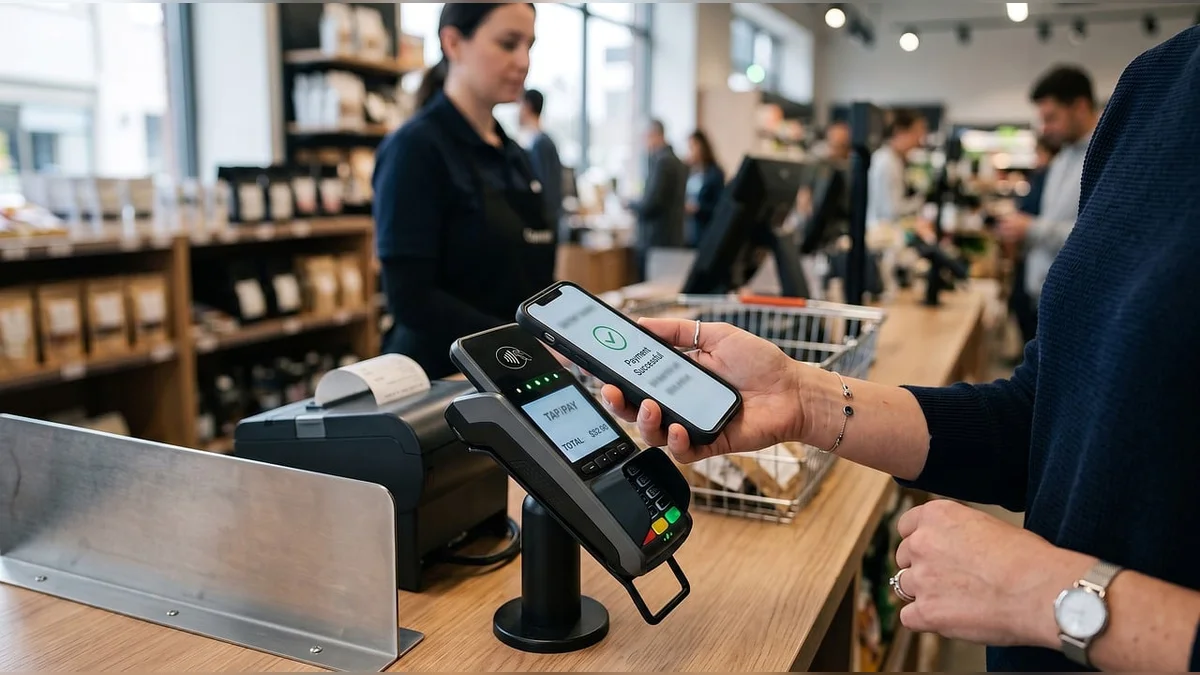
Many seniors ask which iPhone for the elderly works best, and the iPhone SE remains our top recommendation.
2. Can I set up an iphone for the elderly without an Apple ID?
No, an Apple ID is required for initial setup, app downloads, and iCloud backup. However, you can create the Apple ID yourself using your email address, then manage it on their behalf. This gives you control over password recovery and purchases. Set up Family Sharing so you can approve app downloads and share subscriptions without sharing passwords.
3. How do I prevent an elderly user from accidentally deleting apps or changing settings?
Enable Guided Access under Settings → Accessibility → Guided Access. This locks an iphone for the elderly into a single app and requires a passcode to exit. For broader protection, use Screen Time → Content & Privacy Restrictions to block app deletion, in-app purchases, and changes to passcode settings. This prevents accidental configuration changes while keeping essential functions available.
4. What if my elderly parent has hearing loss?
Enable Hearing Aid Compatibility under Settings → Accessibility → Hearing Devices. The iPhone supports Made for iPhone (MFi) hearing aids that stream calls and audio directly. Also turn on LED Flash for Alerts so the camera flash blinks when calls or messages arrive. For FaceTime calls, enable Live Captions (iOS 16+) to display real-time text of spoken conversation.
5. Is an iphone for the elderly better than a simplified senior phone?
It depends on cognitive ability. For seniors comfortable with basic technology, an iphone for the elderly offers superior accessibility features, video calling, and emergency tools. However, for someone with advanced dementia or severe tech anxiety, a dedicated senior phone like the Jitterbug with physical buttons and 24/7 operator assistance may work better.
The iPhone's Assistive Access mode narrows this gap significantly, making it viable for many users who previously struggled.
Conclusion
Setting up an iphone for the elderly doesn't require technical expertise — just deliberate configuration.
- Adjust display settings first: larger text and bold fonts solve most usability complaints on an iphone for the elderly
- Simplify the Home Screen to 6-8 essential apps and consider Assistive Access
- Configure Medical ID, Emergency SOS, and Fall Detection before anything else
- Silence unknown callers and disable non-essential notifications to reduce anxiety
- Install remote management tools like TeamViewer QuickSupport for ongoing support
Your next step: block out 30 minutes, sit down with your loved one, and work through these five settings together. An iphone for the elderly set up this way will be dramatically easier to use than the one that came out of the box.





