A retirement countdown clock for desktop is a small app that shows exactly how many days, hours, and minutes remain until your last day of work. It sounds trivial, yet it changes behavior: when the remaining time is visible every time you open your laptop, saving decisions stop feeling abstract.
The problem is that most people search for a clock, install the first free widget they find, and end up with something cluttered, inaccurate, or full of ads. This guide covers the five things that separate a good countdown tool from a bad one: accuracy, visibility, customization, motivation features, and privacy.
You will also get a comparison table, setup steps, and answers to the questions people ask most.
1. Accuracy Comes Before Motivation
The first rule of any countdown tool is that the number must be correct. A retirement clock that drifts by a day or two is worse than no clock at all, because you will start trusting it and planning around it.
Most desktop clocks calculate the remaining time from a target date stored in a settings file. A properly built retirement countdown clock for desktop depends entirely on you entering the right date and timezone.
Common mistakes include setting the date without the time, forgetting that "last working day" is often earlier than the official retirement date, and ignoring daylight saving changes.
- Set the target as a full date and time, not just a day
- Confirm your system timezone matches the one in the app
- Recheck the countdown after any daylight saving shift
- Write the target date down somewhere outside the app
For example, if your official retirement is 1 June but your last working day is 29 May, the clock should count to 29 May — otherwise every glance at those extra three days is wasted.
Consider using a built-in system tool first. Windows users can create a simple countdown with Task Scheduler and a script, while macOS users can do something similar with Calendar alerts or a Shortcuts automation. These are less pretty than a dedicated app but never drift.
A reliable retirement countdown clock for desktop should be checked once a quarter against your official HR paperwork.
How to apply this: open your clock settings now and verify the date, time, and timezone in one pass.
2. Visibility Decides Whether It Actually Helps
A countdown only works if you see it without trying. If the clock lives in a folder you open twice a month, it is a novelty, not a tool.
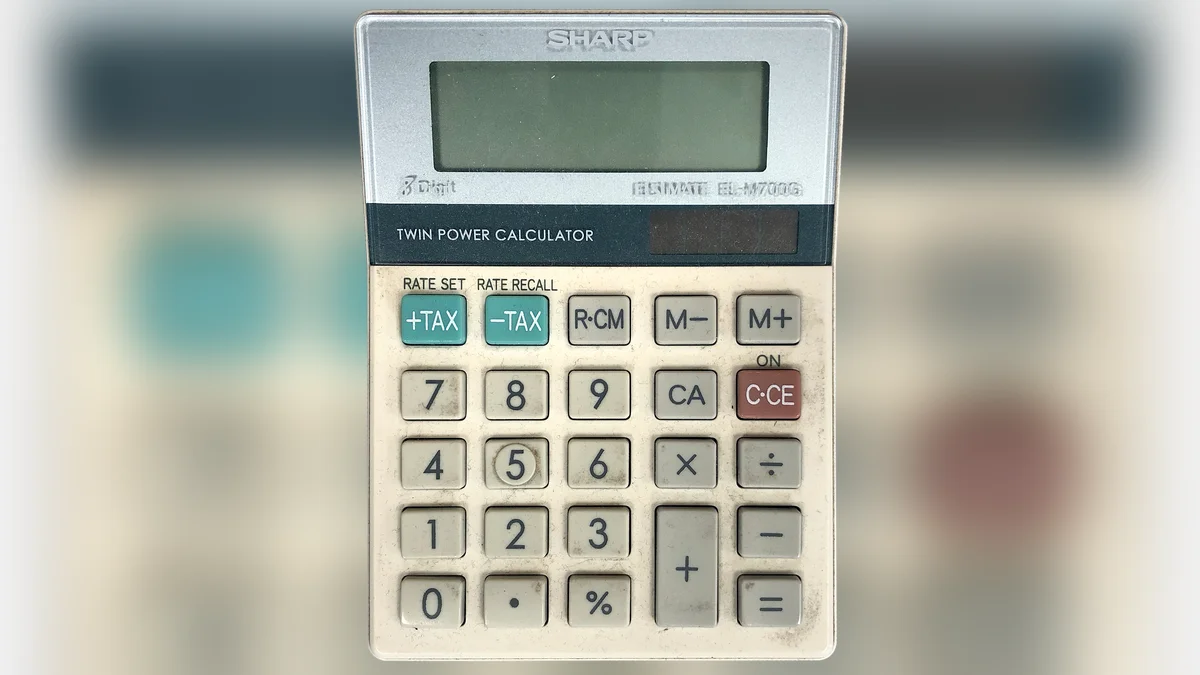
The most effective setups put the remaining time somewhere in your line of sight during normal work. On Windows that usually means the taskbar or a desktop widget layer. On macOS it is typically the menu bar or a widget in Notification Center. On Linux, desktop environments like KDE Plasma and GNOME both support widgets that can display custom text.
| Placement | Visibility | Setup effort | Action to take |
|---|---|---|---|
| Taskbar / menu bar | High | Low | Pin the app at install |
| Desktop widget | Medium | Low | Enable "always on top" |
| Browser new tab | Medium | Medium | Use a countdown extension |
| Phone lock screen | High | Low | Mirror the target date |
| Written note on monitor | High | None | Update monthly |
Research on goal visibility consistently shows that people who track a target visually tend to stay more engaged with it. The exact effect varies by person and context, but the direction is consistent across studies.
A common scenario is someone who installs a clock, enjoys it for two weeks, then moves it off-screen during a busy period and forgets it exists.
The fix is to put the retirement countdown clock for desktop in a spot you cannot avoid — the same corner where you check the time, because a retirement countdown clock for desktop you never glance at delivers zero value.
How to apply this: move your clock to the taskbar or menu bar today and pin it so it survives restarts.
3. Customization Keeps It Useful for Years
Retirement timelines are long. A clock that looks fine for a month can become irritating over five years, so pick something you can adjust. With a customizable retirement countdown clock for desktop, you can fine-tune every visual detail instead of tolerating defaults.
Look for these adjustable elements:
- Font size and color, so it fits your wallpaper
- Display format (days only, or days plus hours and minutes)
- Multiple milestones, such as a pension vesting date or a final mortgage payment
- Optional hiding during work hours or meetings
- Light and dark mode support
Some tools also support multiple countdowns side by side, which is handy if you are tracking a sabbatical, a relocation, or a child's graduation alongside retirement.
A practical example: a user tracking both a pension eligibility date and a retirement date can display two clocks and see at a glance how the two relate. That is far more useful than a single number.
If you want a full-featured option, dedicated countdown apps on the Microsoft Store and Mac App Store offer these controls out of the box, and open-source alternatives exist on GitHub for users who prefer to inspect the code. For broader productivity tracking, a tool like Todoist can hold milestone tasks alongside your countdown.

How to apply this: enable dark mode and a large font so the clock stays readable against your normal wallpaper.
4. Motivation Features Turn Numbers Into Action
A static number is informative. A number with context is motivational. The best tools add small features that convert the countdown into planning momentum, which is why a well-designed retirement countdown clock for desktop goes beyond displaying a single figure.
Useful additions include:
- Weekly progress bars showing how much of the current year has passed
- Percentage-complete indicators for the full retirement window
- Milestone alerts at 1,000 days, 500 days, and 100 days
- A simple note field for the next financial step
- Export or screenshot options for sharing progress with a partner
These features matter because retirement planning is partly emotional. Seeing "1,000 days remaining" feels different from seeing "2 years, 8 months." Smaller, rounder numbers create a sense of progress.
Practical tools that support this kind of tracking include spreadsheet apps and habit trackers. Google Sheets is free and works on every desktop platform, so you can build a lightweight tracker with a formula that subtracts today's date from your target.
If you want analytics on your own planning habits, Google Analytics is designed for websites rather than personal tracking, so it is not the right fit here — a simple spreadsheet is better.
How to apply this: add one milestone alert at 100 days so you get a clear signal to start final paperwork.
5. Privacy and System Impact Matter More Than Design
A countdown clock is a tiny utility, but it often asks for permissions it does not need. Be careful what you install.
Red flags to avoid:
- Apps that request network access without a clear reason
- Free widgets bundled with adware or toolbars
- Clocks that require an account and upload your target date
- Programs that run a background service continuously
A simple desktop countdown needs no internet connection at all. It reads the system clock, compares it to your stored date, and redraws the display. Anything beyond that deserves scrutiny, and that rule applies to any retirement countdown clock for desktop you consider installing.
According to the Federal Trade Commission, consumers should review permissions before installing free software, because bundled adware remains one of the most common complaints the agency receives about desktop utilities. That guidance applies directly to countdown widgets.
If you want to verify what a tool is doing, check its listing in the official Microsoft or Apple store rather than a random download site. Store listings go through a review process and show permission disclosures.
How to apply this: open your installed apps list and remove any countdown widget you do not recognize or no longer use.
Frequently Asked Questions About retirement countdown clock for desktop
Can I run a retirement countdown clock for desktop without installing software?
Yes. You can build one with a script and Task Scheduler on Windows, or a Shortcuts automation on macOS. These use the system clock directly, so they never drift and require no third-party download. The tradeoff is appearance — a scripted countdown looks plainer than a designed widget, and you must update the target date manually if plans change.
Will a countdown clock slow down my computer?
A well-built countdown widget uses almost no memory or CPU because it only redraws when the minute or day changes. Problems appear when a widget runs a constant background service or checks the internet every few seconds. If your fan spins up after installing a clock, uninstall it and switch to a scripted option or a store-reviewed app instead.
A lightweight retirement countdown clock for desktop should never tax your system.
What date should a retirement countdown clock for desktop target?
Target your last working day, not your official retirement date, unless the two are the same. Many people finish work weeks before their pension officially begins. Targeting the later date inflates the countdown and can make your final planning weeks feel longer than they are. Confirm both dates with your HR department before setting the clock.
Do countdown apps work if I change timezones while traveling?
Most desktop clocks follow your system timezone, so a move across zones can shift the displayed hours even when the day count stays correct. If you travel often, set the app to a fixed timezone rather than the system default. That keeps your retirement countdown clock for desktop consistent no matter where you open your laptop.
Can I sync a desktop countdown clock with my phone?
Some apps offer companion mobile versions that sync through a shared account, but that usually means your target date is stored on a server. If privacy matters, skip syncing and set the same date manually on both devices. You get identical numbers without giving a third party access to your retirement plans.
Conclusion
The right retirement countdown clock for desktop is a small tool with a real effect on how you plan your final working years. The five things that matter most are accuracy, visibility, customization, motivation features, and privacy. Choosing a retirement countdown clock for desktop wisely pays off for years.
- Set the target to your last working day and verify the timezone
- Place the clock where you cannot miss it, such as the taskbar
- Pick a tool you can customize so it stays useful for years
- Add milestone alerts at 100 days for a clear planning signal
- Avoid widgets that request internet access or bundled extras
Your next step is simple: check your current clock settings, fix the target date, and move the display to a spot you see every morning before opening your email.





